Get your bot
live in minutes.
Every step below is a real screenshot from the actual dashboard — not a mockup. Follow them in order and you’ll have a working, embedded bot by the end.
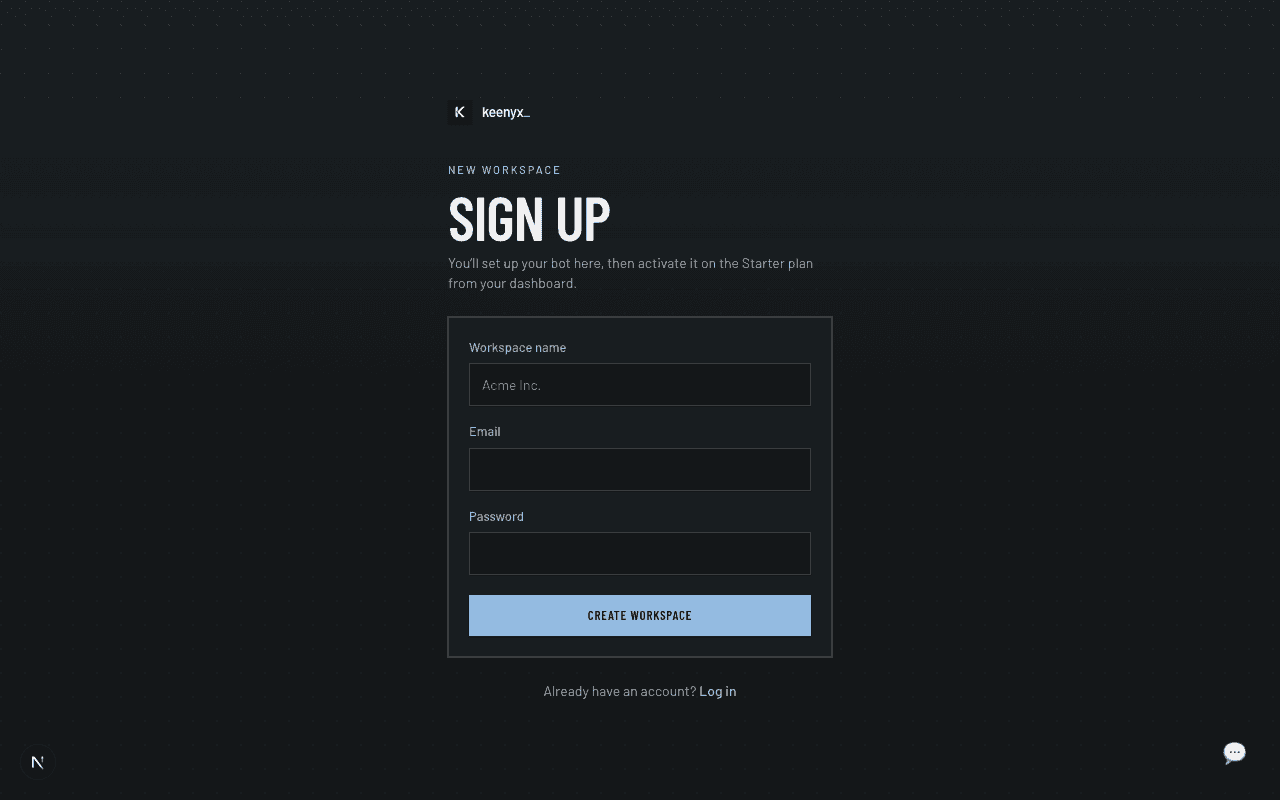
Create your account
Give your workspace a name and sign up. This creates your workspace and your first bot automatically — there's nothing else to set up before you can start adding knowledge.
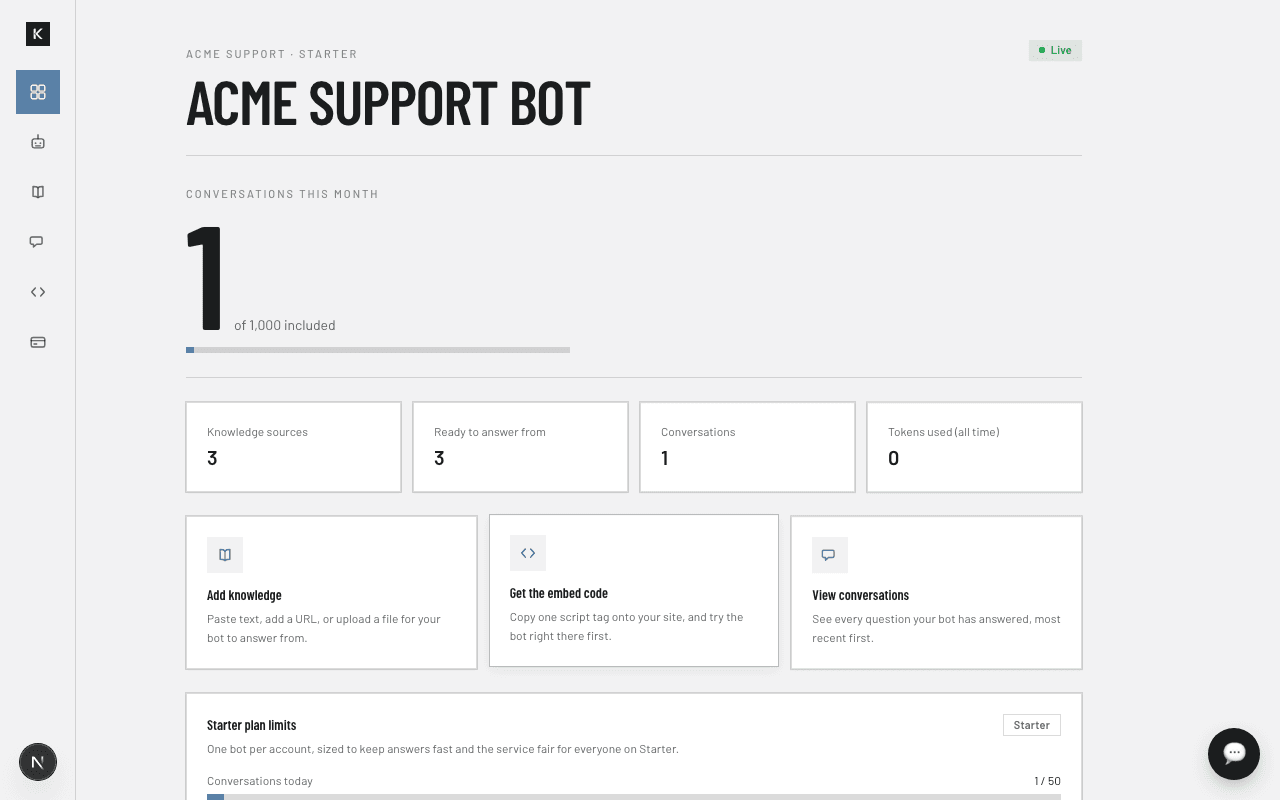
Meet your dashboard
Once you're on the Starter plan, this is home base: how many conversations you've used this month, how much knowledge is indexed, and quick links to the three things you'll actually touch — knowledge, embed code, and conversations.
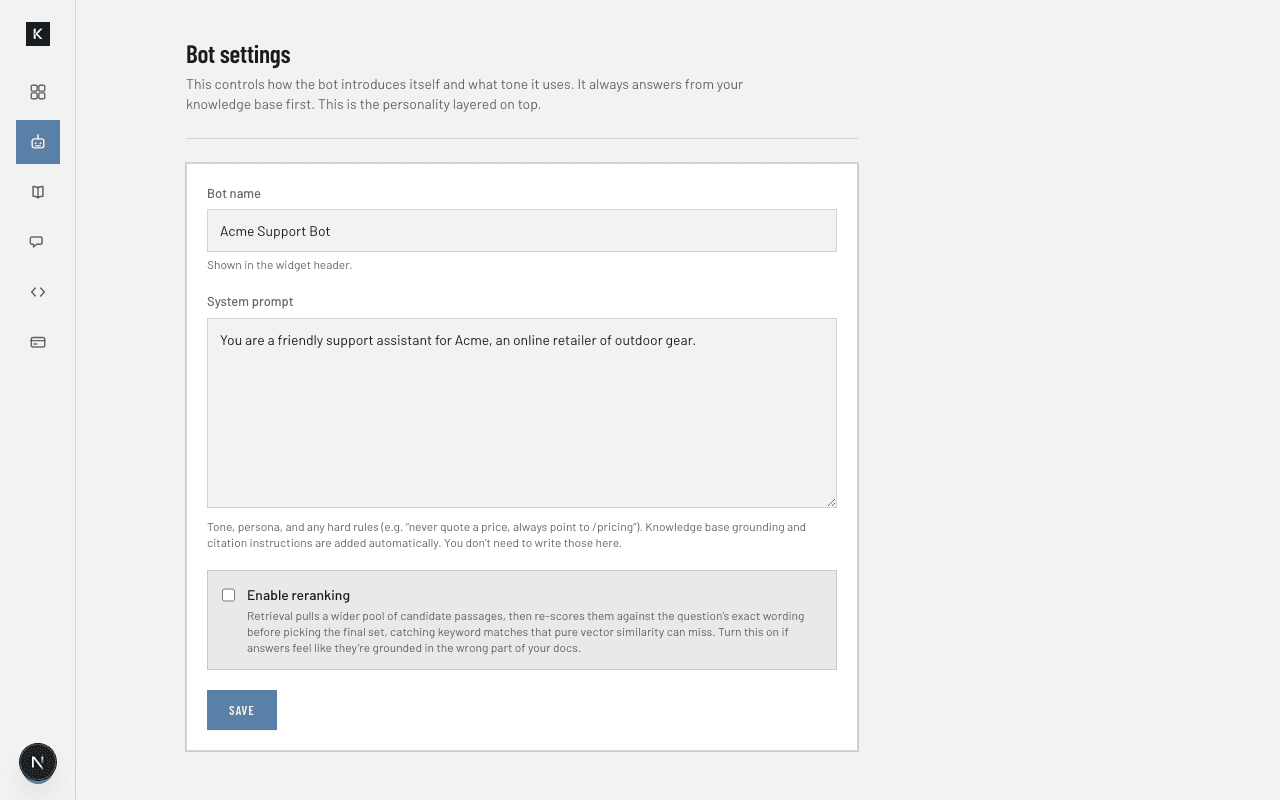
Give your bot a persona
Set its name and a system prompt — the tone, persona, and any hard rules you want it to follow (e.g. "never quote a price, always point to /pricing"). You don't need to write grounding or citation instructions yourself; those are added automatically to every bot.
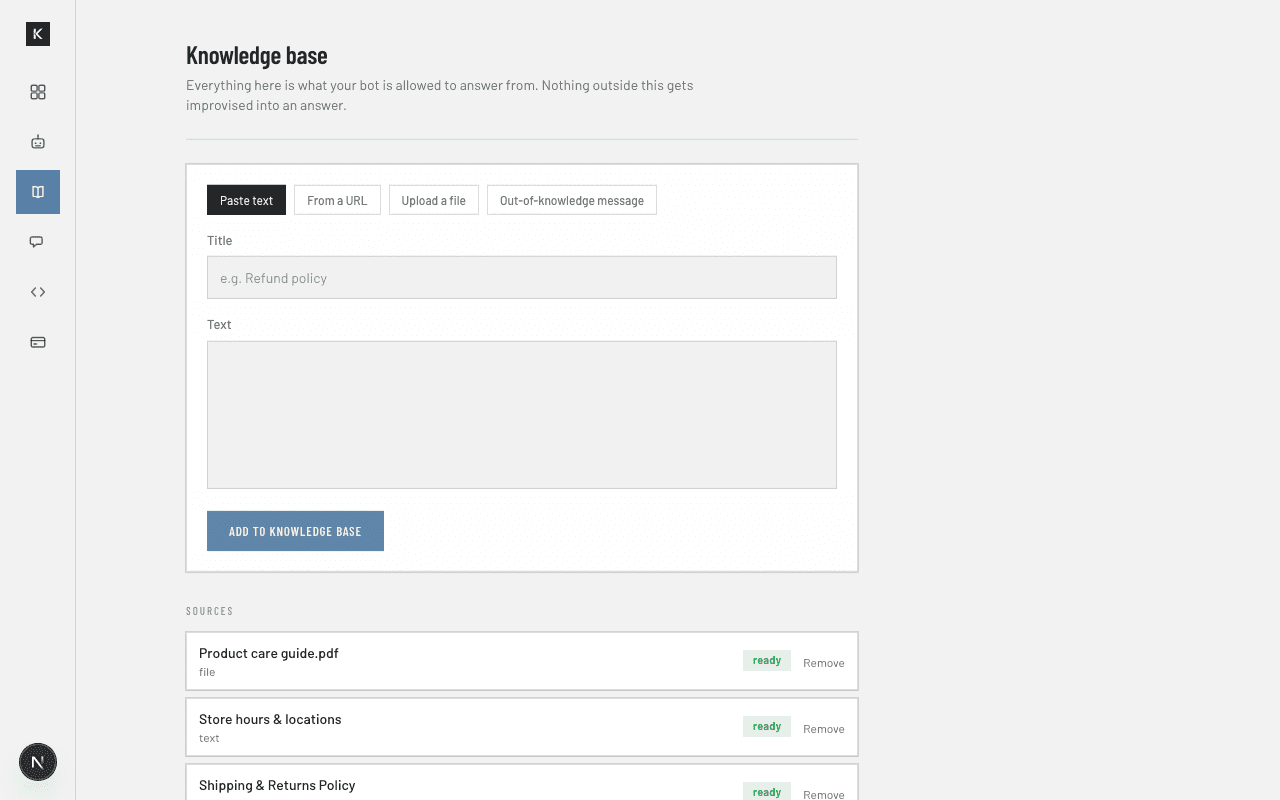
Add your knowledge base
Paste text, add a URL (Keenyx will also crawl a few linked pages), or upload a PDF/DOCX/TXT/MD file. Everything here is what your bot is allowed to answer from — nothing outside it gets improvised into an answer.
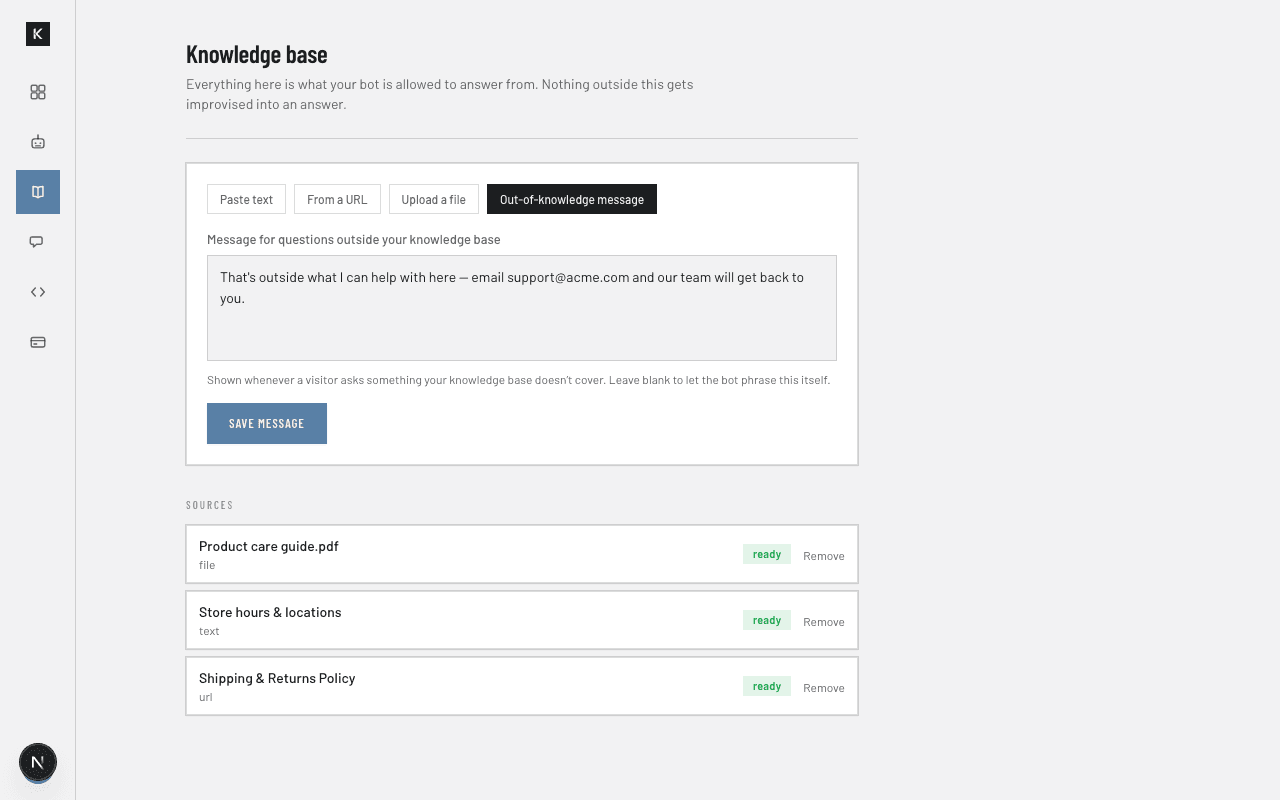
Set a message for out-of-scope questions
The fourth tab, right next to your knowledge sources, lets you write the exact message your bot uses when a visitor asks something outside what it knows — instead of the model's own default phrasing. Leave it blank to let the bot phrase that itself.
Test it, then grab your embed code
Try it right there in the dashboard first — same knowledge base, same model, same answers a real visitor would get. When you're happy with it, copy the one script tag underneath.
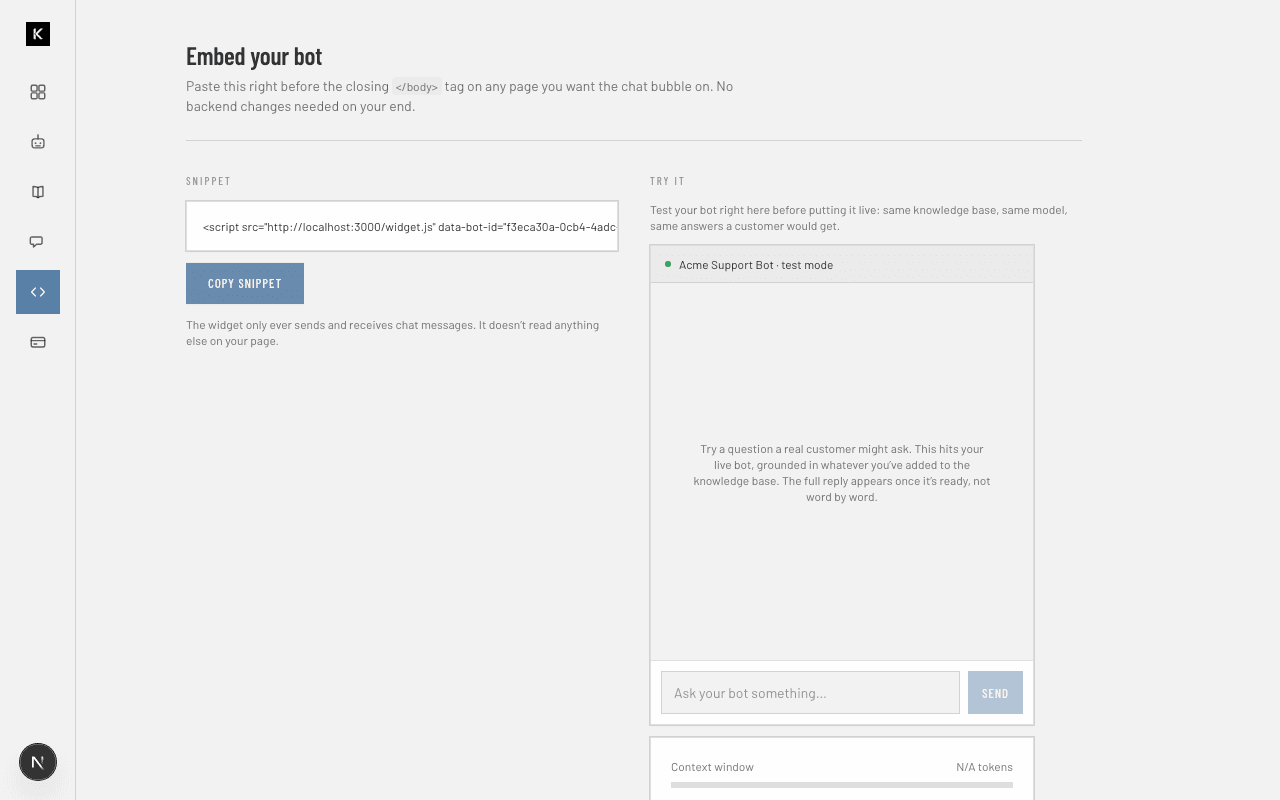
Shown on a local test workspace — your own snippet will point at keenyx.com and carry your bot’s own ID.
Add the script to your site
Paste it right before the closing </body> tag on any page you want the chat bubble on. No backend changes, no build step, no SDK to install.
<script src="https://keenyx.com/widget.js" data-bot-id="your-bot-id" async></script>Your real snippet (from the Embed page) already has your own bot’s ID filled in — just copy it as-is.
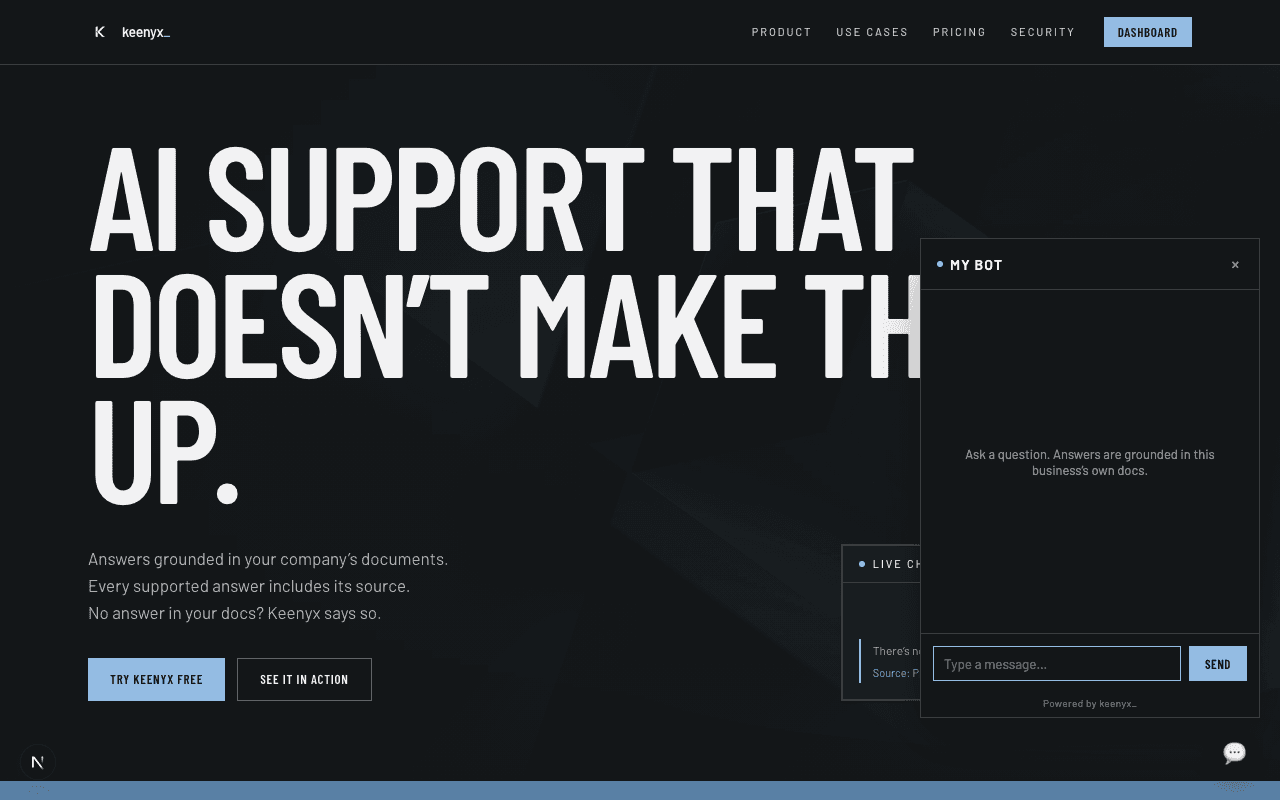
See it live
The bubble appears in the bottom-right corner. Click it, and it opens a full chat panel that answers only from what you've added to the knowledge base, citing its source on every grounded reply.
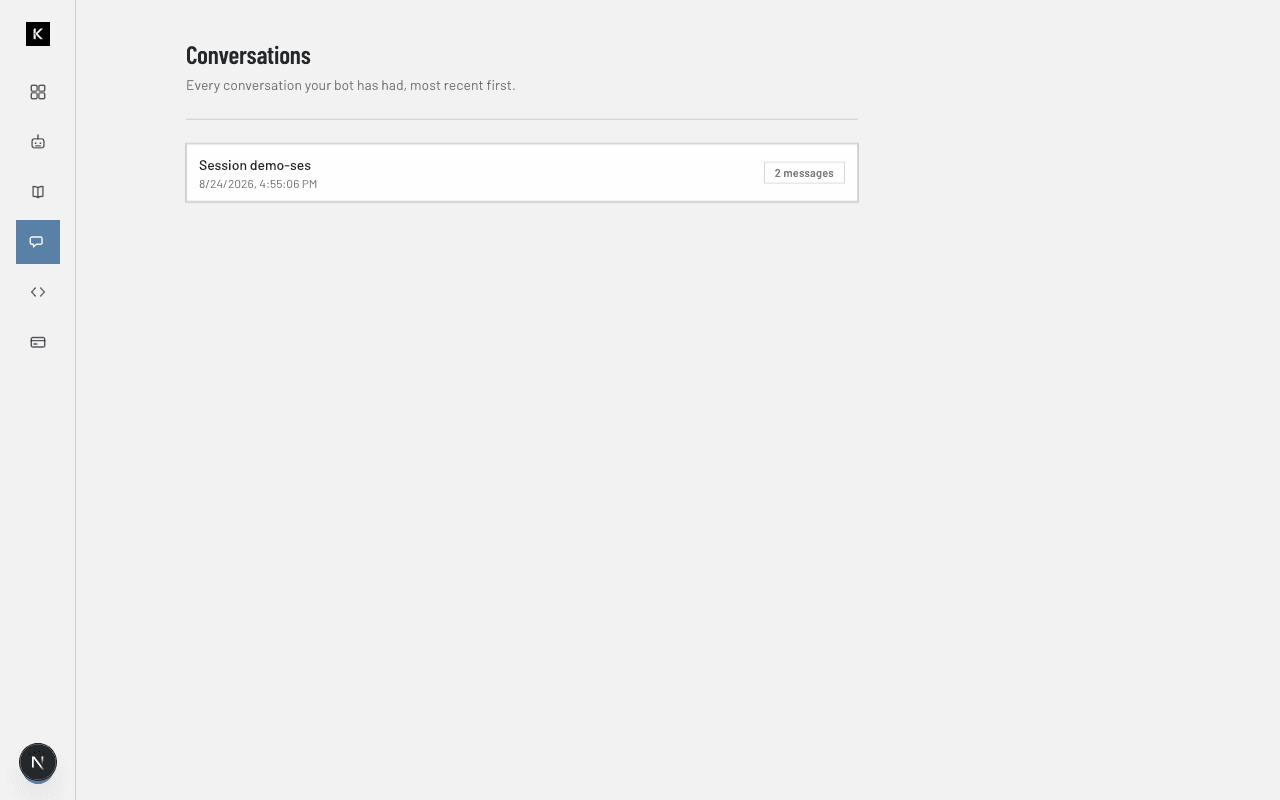
Review every conversation
Every question your bot has answered shows up here, most recent first, so you can see exactly what visitors are asking and how the bot responded.